

Chances are the questions for your survey already exist somewhere. Maybe it's last spring's PTA volunteer survey sitting in a Word file, a PDF you exported from a survey tool you've outgrown, or a shared doc where your HOA board has been collecting ideas for the annual resident survey since January. Retyping all of that, one question at a time, is tedious busywork that eats up the hours you'd much rather spend on actually gathering answers.
Importing an existing survey into empirio.ai works like this: in your dashboard, click New survey, select Import a survey and upload a PDF, DOCX, XLSX, PPTX, CSV or TXT file. The AI then reads the document, detects every question and its answer choices and turns them into an online questionnaire that's ready to send.
In this guide, we show you when an import really saves time, which file types the AI can read and how to handle the trickier cases, like moving a paper questionnaire online or leaving your old survey tool behind for good.
📌 The key points at a glance
- With empirio.ai you import existing surveys and documents in a few clicks.
- Questions and answer choices transfer to your questionnaire word for word.
- Supported: PDF, DOCX, XLSX, PPTX, CSV and TXT, up to 10 MB.
- Ideal for tool switches, paper forms and drafts your team wrote.
- Review the questionnaire briefly, then send it out immediately.
Create a survey for free
With empirio.ai you can create a modern online survey in minutes — free to start.
- AI-built survey
- Adjust by drag & drop
- Real-time analysis
When it makes sense to import a survey
An import is the right move whenever your questions already exist on paper or in a file and rewording or retyping them would just be busywork. Four situations come up all the time, and odds are you'll see yourself in at least one of them:
- You're leaving your current survey tool. Your survey already runs online, but the tool has gotten pricey, feels clunky or keeps your data in a place you'd rather avoid. Export the questionnaire as a PDF or Word file and upload it to empirio.ai.
- Your team drafted the questions together. Maybe the program staff at your nonprofit brainstormed in a shared doc, or the questions landed on slides during a planning meeting. Rather than copying them over by hand, you upload that exact file and move on.
- You're ready to retire a paper questionnaire. Your questions have been going out on paper, perhaps on a clipboard at the clinic front desk, as a comment card by the register of your small business or as a handout at the PTA meeting. Once the survey is online, nobody has to tally checkmarks or decipher handwriting afterward.
- The survey has always been an email attachment. Each year, a Word file went out to everyone and trickled back into your inbox one reply at a time. With an online survey, every response flows into one place where you can analyze it on the spot.
Whatever brings you here, the process at empirio.ai stays the same: you upload your material and our AI creates a digital questionnaire from it, keeping your original wording for each question and pairing it with a matching question type and answer choices.
When another starting point works better
If you're starting from zero, an import won't help much, since the AI can only carry over questions that already exist. In that case, describe your idea in a sentence or two under Create with AI to get a first draft, or open Browse templates and pick something ready-made to adapt. For planning a strong questionnaire from the ground up, our guide on how to create a questionnaire covers every step along the way.
Which file types you can import
Six file formats work with the import, namely PDF, DOCX, XLSX, PPTX, CSV and TXT. Each upload can be up to 10 MB, and every import handles one file at a time. Clean input pays off here, because when your questions are clearly worded and visibly separated, the AI has a much easier time producing an accurate questionnaire.
Can I create a survey from a Word document?
Plenty of questionnaires start life in Word, whether it's a parent feedback form for the PTA or a client intake sheet at a small accounting firm. Upload the file as a DOCX, and you'll get the cleanest result if every question gets its own line with the answer choices stacked directly beneath it, the same layout you'd use for a printout. If the file is an old .doc from years back, open it in Word and save it as .docx first.
Can I create a survey from a PDF?
PDFs are just as welcome, from the export of the tool you're leaving to the print-ready version of the paper form your clinic hands out at check-in. The AI extracts the questions and sets up an online questionnaire with its own link, which spares you the hassle a fillable PDF brings, where every completed copy has to be gathered and opened separately.
Can I create a survey from an Excel spreadsheet?
Spreadsheets in XLSX format are a natural fit for question lists, say the question bank HR maintains for the annual engagement survey or the post-event feedback sheet a nonprofit reuses after every fundraiser. Put one question per row and its answer choices in the neighboring columns, and the AI can follow the structure with ease.
Can I create a survey from a PowerPoint presentation?
When the questions were drafted on slides at a workshop or a kickoff, upload the deck as a PPTX file. The AI lifts the questions off each slide and drops them into your questionnaire, so there's no detour through yet another document.
Can I create a survey from a CSV or text file?
Plain formats are fine, too. CSV is handy when the questions are coming out of another system or spreadsheet program, and anything you typed into a notes app or an email draft can be pasted into a TXT file and uploaded as is, with no formatting required.
Where the import reaches its limits
- Photos, image files and screenshots of a questionnaire aren't supported.
- Survey links won't work because the AI doesn't open web addresses, so save the survey as a PDF instead.
- Files living in cloud office apps have to be downloaded as DOCX, XLSX or PPTX first.
- With a paper questionnaire, go back to the original file it was printed from whenever it's still around.
How to import a survey in 3 steps
Getting your document in takes about three clicks. You start the import from the dashboard, upload the file and end up with a complete questionnaire, ready to share or to polish in the editor. An empirio.ai account is the only thing you need, and the screenshots below match what you'll see on screen.
Step 1: Pick “Import a survey” from your dashboard
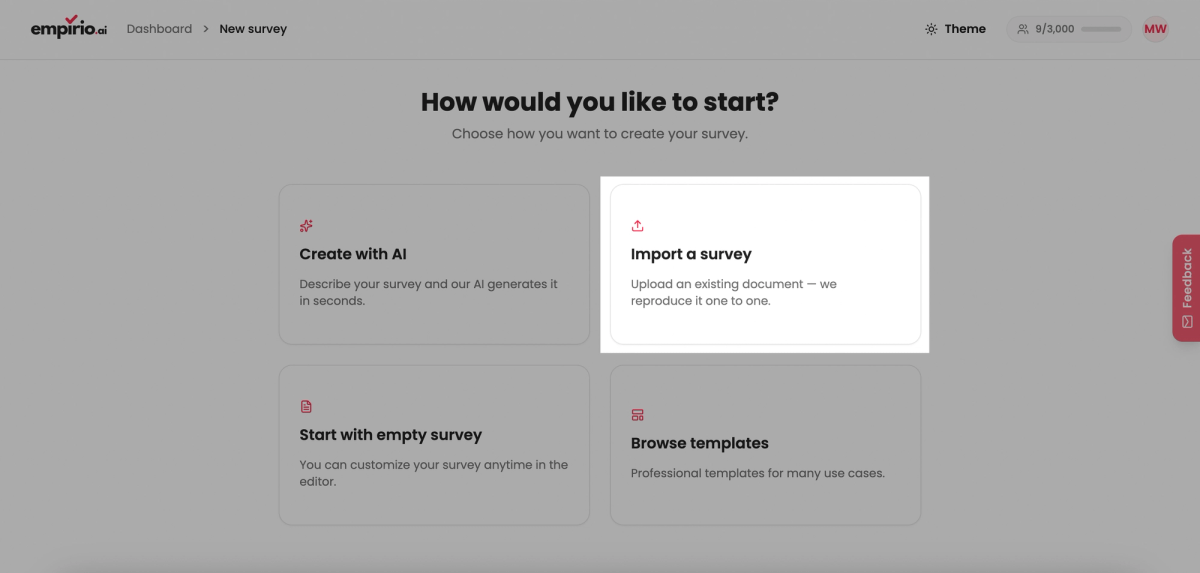
In your dashboard, hit New survey. You'll land on a page titled How would you like to start? with four tiles to pick from, Create with AI, Import a survey, Start with empty survey and Browse templates, and for your document you go with Import a survey.
Step 2: Upload the file and let the AI take over
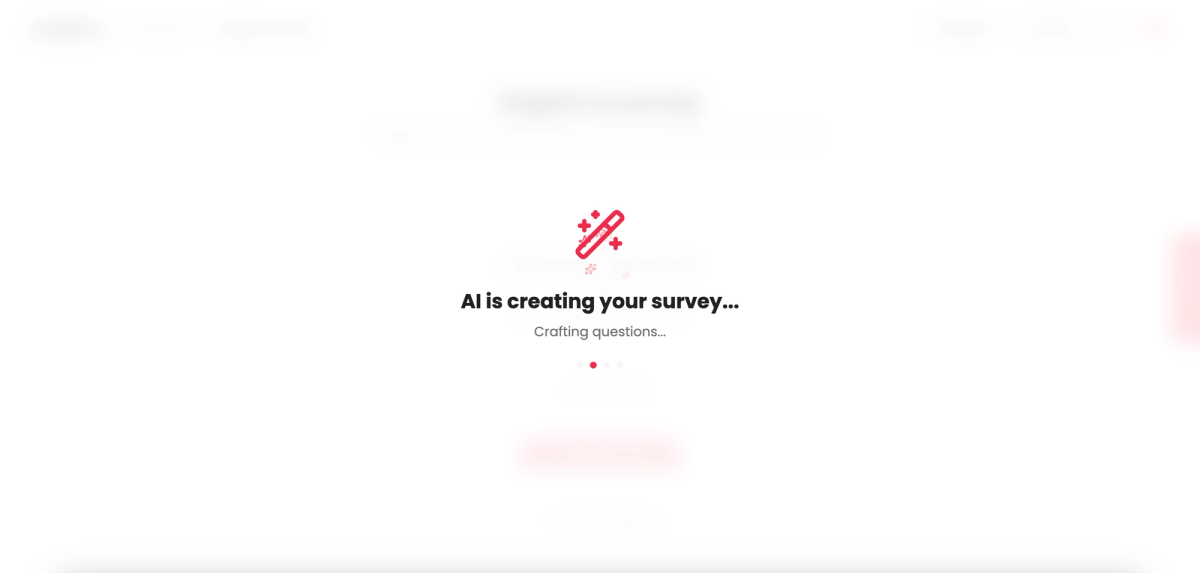
Either drag your document onto the field labeled Drag a file here or click to choose or click the field and browse to the file on your computer. A click on Create survey kicks off the import, and from that moment on the AI works through your document, identifying questions, answer choices and rating scales and assembling your questionnaire piece by piece. During that time, the notice AI is creating your survey stays on screen.
Step 3: Look it over and launch
Once the AI wraps up, your questionnaire is waiting for you. Send it out right away by link or using a QR code, or head into the editor to tweak the wording, reorder questions, swap a question type or pick a design you like. Whenever you want, the preview lets you see the survey through your respondents' eyes.

Create a survey for free
With empirio.ai you can create a modern online survey in minutes — free to start.
- AI-built survey
- Adjust by drag & drop
- Real-time analysis
What to check after importing your survey
The AI transfers your questionnaire word for word, yet it has no way of knowing the thinking behind every question. Before the link reaches your respondents, a short review is worth it, and five minutes usually covers it if you concentrate on these points:
- Each question uses the question type you intended.
- Every answer choice made it over.
- Rating scales show the right endpoints and labels.
- Only questions that truly need an answer are marked required.
- Welcome page and end page match the tone of your survey.
- The survey runs smoothly in a test on your own phone.
Question types deserve your closest look. A paper form often shows a rating as a row of little boxes, while online that should be a scale and not a multiple choice question, and our overview of question types for surveys helps you pick the right one for each question. Instructions like “If no, skip to question 7” become survey logic and branching online, which comes with the Lite plan at €19 a month and up. For a warm opening, use the welcome page, and our article on writing a survey welcome message has sample wording you can adapt.
Tip: Let two people try it first
Before the official launch, send the preview link to two people who belong to your audience, say two parents from your PTA or two regular customers. Fresh eyes catch in minutes what you stopped noticing on your third read-through, and our tips for online surveys have plenty more advice like this.
How to digitize a paper questionnaire
The easiest way to digitize a paper questionnaire is to start from the file it was originally printed from. You upload it as usual and then share the finished questionnaire as an online survey, so the questions stay the same and only the filling out and counting happen digitally from now on.
If you want to compare the new results with earlier paper rounds, keep the wording and the answer scales as close to the original as you can. In its research on mode effects, the Pew Research Center found that many of the largest gaps between web and phone answers showed up on questions where people may want to look good in front of an interviewer, because being interviewed by another person feels different from completing a survey online or on paper. Since web and paper questionnaires are both filled out without an interviewer, the GESIS Survey Guidelines on mixed-mode surveys consider the risk of mode effects lower for that pairing than for any mix involving interviews. Such effects don't vanish completely, though, so it's wise to read sudden jumps on individual questions with a bit of caution.
A few spots still need adjusting when you make the switch, because they no longer make sense online or get in the way on a phone:
- Name and signature fields usually don't belong in an online survey. If you want responses to stay anonymous, leave them out and read up first on what matters in an anonymous survey.
- Large grids with many rows are a pain to complete on a smartphone, so break them up into several short questions instead.
- Instructions for filling out the form such as “Check one box” or “Please print clearly” can simply be deleted.
Entering paper questionnaires that are already filled out
If you already have completed paper forms from a round that's still running, the import won't carry over those answers, because it only reads the questionnaire itself. You can, however, enter the forms yourself through your online survey link, one after another, so that in the end all responses show up together in the same results. Whether an online survey suits your project better than paper overall is something we cover in our article on the pros and cons of online surveys.
Still reaching people offline
If you'd like to keep reaching the people who used to get the paper form handed to them, put up a flyer with a QR code on the bulletin board in the clinic waiting room or at the community center, or leave a stack of small cards on the counter. A quick scan with their phone then takes them straight to the online survey.
Switching survey tools: how to move your questionnaire
Changing survey tools mostly means taking your questionnaire along as a file and uploading it to empirio.ai. There's no special export format to worry about, since a PDF or Word file does the job, and four steps keep the move tidy:
- Export the questionnaire. Save it from your current tool as a PDF or Word file, or print the preview to PDF if there's no export button.
- Download your results. Grab the responses collected so far as an Excel or CSV file, because only the questionnaire moves over, not the answers already submitted.
- Import it into empirio.ai. Choose New survey and then Import a survey, upload the file and give the result a quick look in the editor.
- Replace every link. Update the old link in emails, on your website, in your newsletter, on flyers and in QR codes, then close the old survey so no one keeps responding there.
For surveys on a fixed rhythm, like the yearly HOA resident survey or a quarterly customer check-in, switch between two rounds so a single round's responses never end up split across two tools that you'd later have to merge by hand.
Privacy first
Exported responses often include personal information such as names, email addresses or comments that identify someone. Store the file somewhere secure and delete the data in the old tool once you're done with it. Depending on where you and your respondents are located, privacy laws such as the CCPA in California may apply to that data, and our article on survey data protection walks you through the basics.
The bottom line
Questions you've already written don't need to be written twice. You upload the document to empirio.ai, let the AI convert it into an online questionnaire and look it over before it goes out. Our advice: spend five focused minutes on that review and run one test on your phone, and in many cases your survey can launch the very same day.
Where to go next
- Looking to sharpen your questions? Create a questionnaire step by step
- Need a way to reach people away from their screens? Make a survey with a QR code
- Running a survey for your company? The employee survey guide
Your questionnaire, live in a few minutes?
Drop your document into empirio.ai and let the AI turn it into a survey, free, with 100% EU hosting, AI included.