

Anyone who has worked with survey tools knows the feeling: your hand keeps travelling between keyboard and mouse. After you add an element, you click the question, type something, then click each answer one by one and label it. If you are building a short questionnaire, that hardly matters. If you are building a longer survey, you soon notice how much time it costs.
We have developed our editor further for exactly these power users. From now on, you can create and edit your surveys in empirio.ai with the keyboard as well. With the new keyboard shortcuts you edit questions, question titles, answer options and text blocks, open the preview or undo your last step without taking your hands off the keyboard. There is hardly anything to memorise, because you already know many of the shortcuts from other programs.
Create a survey for free
With empirio.ai you can create a modern online survey in minutes — with hosting in the EU.
- AI-built survey
- Adjust by drag & drop
- Real-time analysis
How it works: the most important shortcuts in the editor
Keyboard control is available in all your surveys from now on, new ones and existing ones alike. You do not need to activate or install anything.
Just open your survey in the editor and get started. These are the most important shortcuts for everyday work:
| Action | Windows | Mac |
|---|---|---|
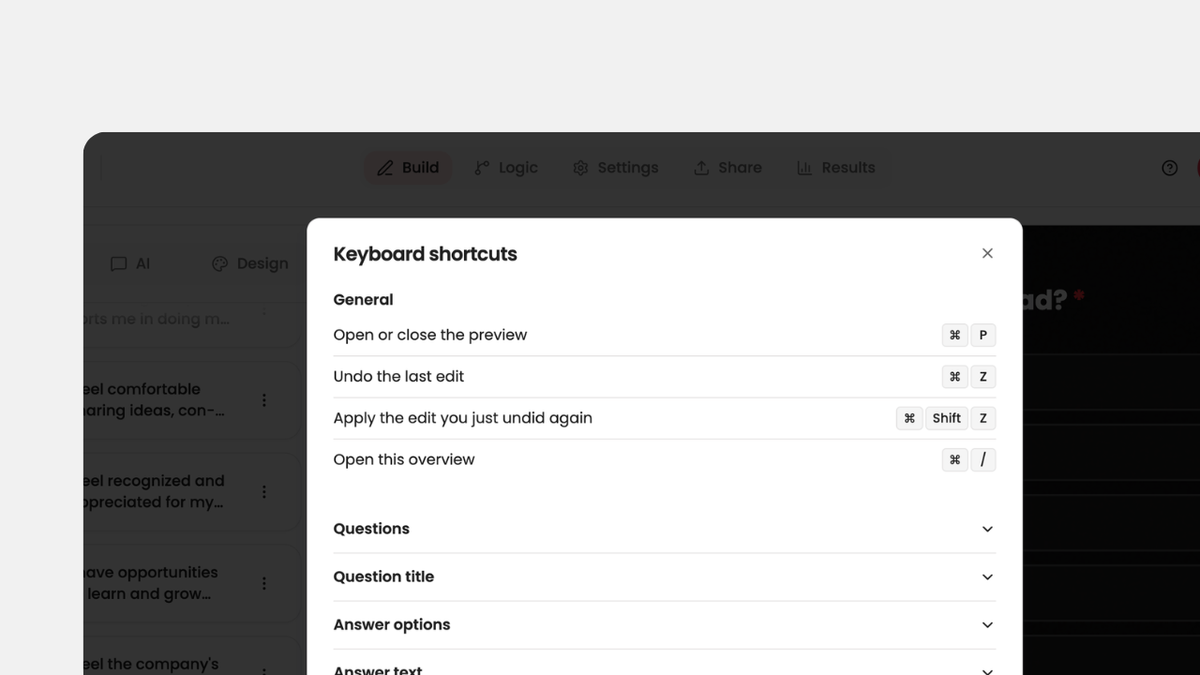
| Open or close the preview | Ctrl + P | ⌘ + P |
| Undo the last edit | Ctrl + Z | ⌘ + Z |
| Redo the edit you just undid | Ctrl + Shift + Z | ⌘ + Shift + Z |
| Select the previous or next question | ↑ / ↓ | ↑ / ↓ |
| Edit the question title | Enter | Enter |
| Insert a new question right after this one | Ctrl + Enter | ⌘ + Enter |
| Duplicate the selected question | Ctrl + D | ⌘ + D |
| Copy the question | Ctrl + C | ⌘ + C |
| Paste the copied question after it | Ctrl + V | ⌘ + V |
| Cut the question | Ctrl + X | ⌘ + X |
| Delete the question | ⌫ / Delete | ⌫ / Delete |
| Open the overview of all shortcuts | Ctrl + / | ⌘ + / |
That is only a selection. There are shortcuts for six areas:
- General
- Questions
- Question title
- Answer options
- Answer text
- Text blocks
If you want to see all shortcuts, click the keyboard icon at the top right of the editor while editing. The complete overview then appears.
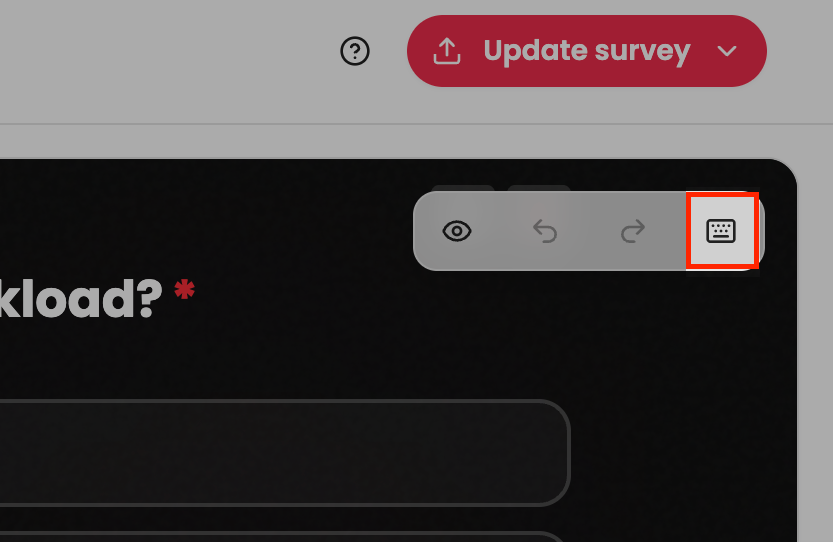
You will find the keyboard icon right next to the preview and the two arrows for undo and redo.
We show you how to structure and order your questions in our guide on how to create a questionnaire.
What keyboard control gives you
- You create and edit questions, answers and text blocks without constantly switching to the mouse.
- You duplicate similar questions with one shortcut and only adjust the text.
- You open and close the preview without leaving the keyboard.
- You undo a slip straight away.
With longer questionnaires in particular, this saves noticeable time. Just try it with your next survey. Working with the mouse stays exactly as you know it, of course.
Cheers, Marvin
Co-Founder, empirio.ai