

Your neighborhood swim and tennis club just polled 100 members about raising the annual dues, and the vote is a dead heat: 50 in favor, 50 against. Looks like a stalemate. Then you split the answers by age and the picture changes completely. Among members under 30, seven in ten want the increase. Among those 60 and older, only three in ten do.
To make a contingency table, you pick two questions from your survey, list the answer options of one question as rows and those of the other as columns, and then count how many respondents gave each combination of answers, so every cell shows one pairing and its frequency. At empirio.ai, an online survey tool from Germany, cross tabulation and filters are included starting with the Plus plan. By the end of this guide, you'll know which percentage belongs in your report and how to tell a real difference from random noise.
📌 The key points at a glance
- With empirio.ai you create contingency tables for surveys in a few clicks.
- Each cell of a contingency table counts one answer combination.
- Row percentages, not grand-total shares, are what you compare across groups.
- The chi-square test tells you if a difference is just luck.
- empirio.ai filters by date range and exports to Excel or CSV.
Create a survey for free
With empirio.ai you can create a modern online survey in minutes — free to start.
- AI-built survey
- Adjust by drag & drop
- Real-time analysis
What is a contingency table?
A contingency table (also known as a cross tabulation, crosstab or two-way table) puts two survey questions side by side and counts, cell by cell, how many respondents picked each combination of answers.
The answers to one question run down the rows, the answers to the other run across the columns. Each cell is where a row meets a column, for example every member under 30 who voted for higher dues. The row and column totals sit in the margins, which is why they're called marginal totals. On their own, they give you the marginal distribution of each question.
Here is the swim club's contingency table with its 100 responses. The numbers are invented. In parentheses you see row percentages, so each row adds up to 100%, while the results view in empirio.ai shows the share of all responses instead.
| Age group | For higher dues | Against higher dues |
|---|---|---|
| Under 30 | 21 (70%) | 9 (30%) |
| 30 to 59 | 20 (50%) | 20 (50%) |
| 60 and older | 9 (30%) | 21 (70%) |
| Total | 50 (50%) | 50 (50%) |
The bottom row is the 50/50 split your regular results page already showed. The row totals are simply the group sizes: 30 members under 30, 40 between 30 and 59 and 30 aged 60 or older. Only the rows themselves reveal how differently each age group voted. With three rows and two columns, the swim club data forms a 3×2 contingency table. Two questions with two answers each give you a 2×2 table, the most common case, such as yes or no split by two groups.
Cross tabulation is the natural next move after tallying each question by itself, and our guide on how to analyze questionnaire results covers the full path from raw data to conclusions.
When should you use a contingency table?
A contingency table pays off whenever you want to know whether groups answer differently: departments, age brackets, customer segments, grade levels or majors. Your overall results show how all answers are spread out. The crosstab shows which groups are hiding behind that overall number.
Four situations come up again and again:
- Employee survey: Engagement scores by department or office location show where the real friction is, often the whole point of an employee survey.
- Customer survey: First-time buyers and longtime regulars often rate the same support very differently, and a customer survey only reveals that once you cross the rating with customer tenure.
- Thesis or capstone: A hypothesis such as “graduate students use AI tools more often than undergraduates” calls for exactly one contingency table, a typical step in any survey for a bachelor's or master's thesis.
- Clubs, PTAs and schools: Which Saturday works best for the block party, split by age group, or how parents rate the booster club fundraiser, split by their kids' grade level.
You need two questions with fixed answer categories: single choice, multiple choice, rating or scale. Open-ended text won't work because every answer is worded differently. With multiple choice, one person can land in several cells, so row percentages add up to more than 100% and the chi-square test isn't designed for that kind of table. Group numbers such as age in years into brackets first, or every single age gets its own row. Which calculations make sense for which type of answer depends on the levels of measurement.
Crosstabs struggle when responses are scarce. Spread 20 answers across 15 cells and most cells hold one or two people, so a single respondent can move a percentage by double digits.
How to read a contingency table: row, column and total percentages
You read a contingency table correctly when you calculate percentages within the groups you want to compare. If the question is whether younger members are more likely to back higher dues, you divide each cell by the number of people in that age group.
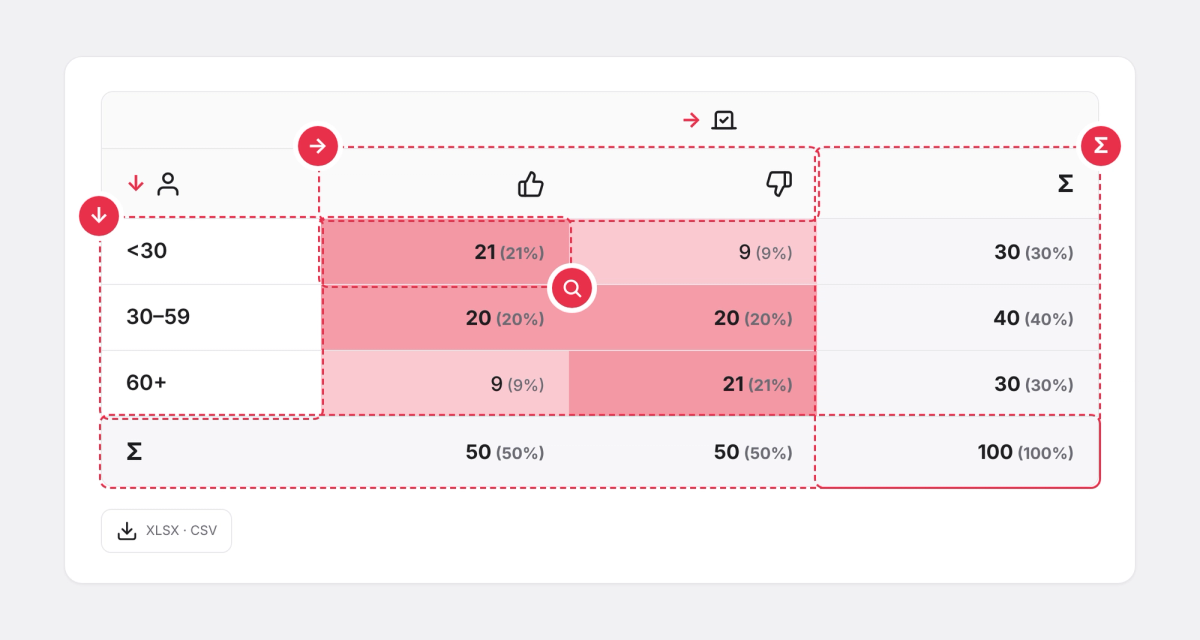
Every cell can be turned into three different percentages, and each one answers its own question. The 21 members under 30 who voted yes come out to 70, 42 or 21 percent, depending on what you divide by:
| Percentage type | Math in the swim club example | Question it answers |
|---|---|---|
| Row percentage | 21 ÷ 30 under-30 members = 70% | How does this age group vote? |
| Column percentage | 21 ÷ 50 yes votes = 42% | Where do the yes votes come from? |
| Total percentage | 21 ÷ 100 responses = 21% | What share of everyone lands in this cell? |
Statistics textbooks call the row percentages the conditional distribution of the vote, given the age group. A simple rule from research methods tells you which percentages to use: calculate them within the categories of the variable you're grouping by. The cleanest layout puts that variable in the rows and uses row percentages. Each row then totals 100%, and you compare the rows with one another: 70% support among younger members, 50% in the middle group, 30% among older members.
Compute percentages inside the groups you're comparing, every single time.
Reports often compare percentages that rest on different bases. “42% of yes votes came from members under 30” does not mean that 42% of members under 30 voted yes. The first sentence describes the yes camp, the second describes the age group. Write down what each percentage refers to, and report the number of responses behind it.
How to make a contingency table in empirio.ai, step by step
In empirio.ai, the path is Results > Analysis > Cross tabulation. There you assign one question to the rows and another to the columns, optionally filter by date range or incomplete responses, and download the finished table as an Excel or CSV file. Cross tabulation and filters come with the Plus plan at €39 per month (pricing as of October 2026).
You'll need at least two suitable questions with fixed answers, such as single choice, rating or scale. If they're missing, empirio.ai shows the message “Cross-tabulation requires at least two suitable questions (e.g., Multiple Choice, Rating, Scale).” instead of a table. You add questions in the editor as usual, and if you haven't collected any responses yet, you can create a free survey with empirio.ai first.
Step 1: Find the Cross tabulation tile
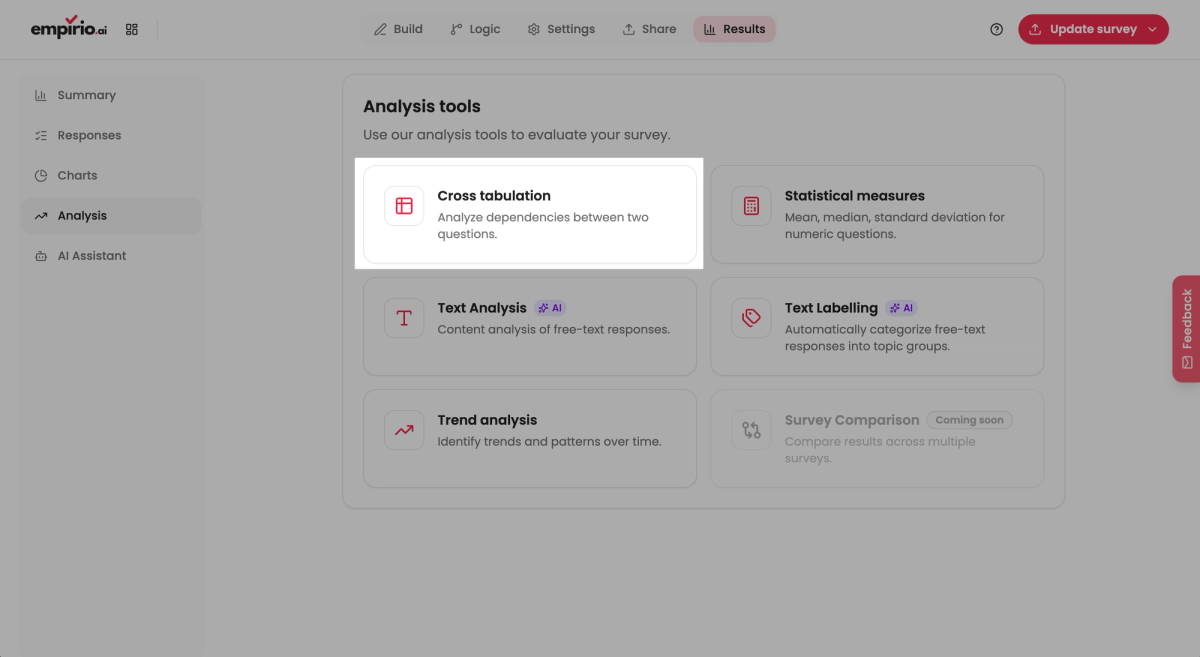
Open your survey and switch to the Results section at the top. In the left sidebar, choose Analysis. The analysis features appear as tiles, and one of them is Cross tabulation, described as “Analyze dependencies between two questions.” Click that tile to open the view. The screenshots below show the English interface.
Step 2: Pick a row question and a column question
Two dropdowns sit at the top: Question 1 (rows) and Question 2 (columns), both showing “Select a question...” until you choose. Your grouping variable, say age group, goes in the rows. The question whose answers you want to compare goes in the columns. Every suitable question pairs with every other one, and you're free to swap them whenever you like.
Step 3: Narrow down the responses with filters
Filters decide which responses go into the table. With From and To you narrow the time window, for example to responses that came in after a reminder email. The Include incomplete responses option also counts people who quit partway through. Leave it off and only finished surveys count, which is the cleaner basis for most analyses because everyone in the table answered all the way to the end.
Step 4: Read the table and export it to Excel or CSV
Every cell lists a count of responses plus, in parentheses, the percentage of the total it represents. Cells with bigger shares are shaded more strongly, which makes clusters easy to spot. Column totals appear in the Total row along the bottom. The Export button gives you two downloads: an XLSX file with counts and shares, or a CSV file with counts only. If a filter was on, the Excel file says so, which keeps filtered numbers from being mistaken for the complete data later.
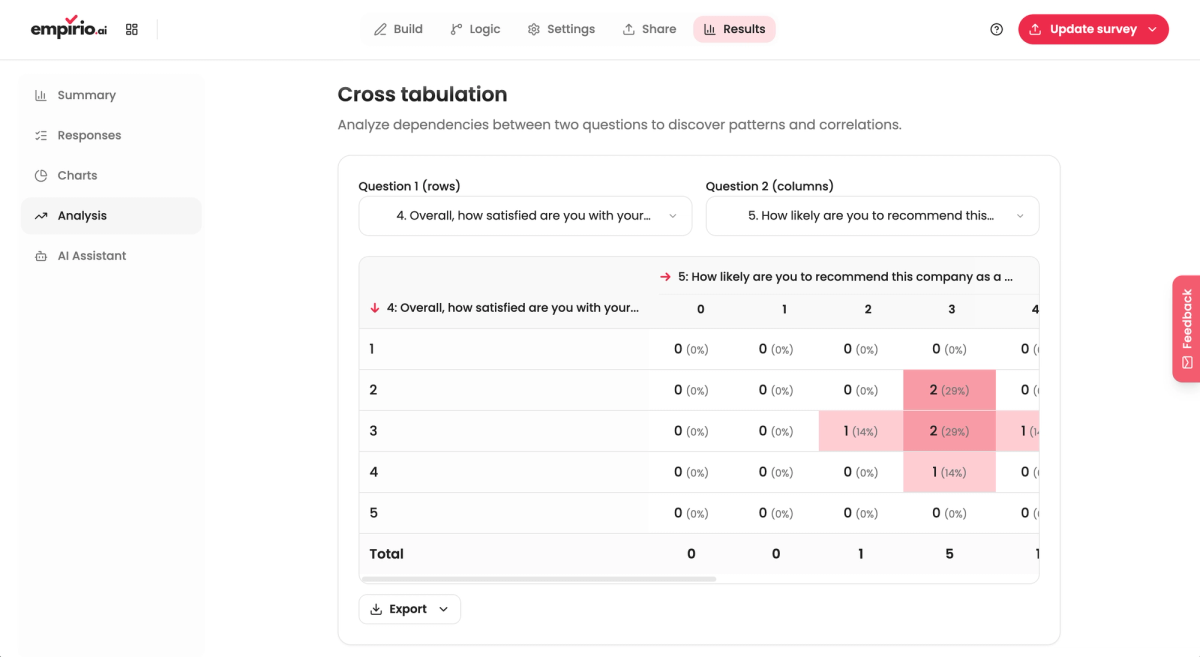
Row percentages don't appear in the cells, since empirio.ai displays each count's share of the grand total. Divide any cell by its row total and you have them.
Row percentages in Excel
Export the contingency table as an XLSX file, then divide each count in Excel by its row total. Format the results as percentages and every row adds up to exactly 100%, so you can read the groups side by side.
Create a survey for free
With empirio.ai you can create a modern online survey in minutes — free to start.
- AI-built survey
- Adjust by drag & drop
- Real-time analysis
Chi-square test: is the difference in your contingency table real?
The chi-square test of independence checks whether a difference in a contingency table is real or just chance. It compares the observed frequencies with the ones you would expect if the two questions had nothing to do with each other. If the gap is large enough, you have a statistically significant association.
The question behind it sounds simple: Could all age groups in the whole club actually feel the same way, with the pattern showing up by chance in the members who happened to answer? With 100 responses, that's a fair question. The larger your sample size, the less likely such a fluke becomes, and at 1,000 responses it would be a real surprise.
Expected frequencies: how the chi-square test works
To get the expected frequency of a cell, multiply its row total by its column total and divide by the grand total. For the swim club, complete independence would mean exactly half of every age group in favor: 15 of the 30 younger members, 20 of the 40 in the middle and 15 of the 30 older ones. The observed counts are 21, 20 and 9. Those gaps add up to a chi-square value of 9.6 with two degrees of freedom, since (3 rows minus 1) times (2 columns minus 1) equals 2, and a p-value of about 0.008. If all age groups across the entire club truly felt the same, a difference this large would show up in fewer than one in 100 samples. The association is therefore statistically significant.
A result that isn't significant doesn't prove the absence of an association. It just means your data didn't pick one up. The test begins by assuming independence, and a significant result is what lets you reject that assumption.
When the chi-square test doesn't fit
The chi-square test needs enough responses in the cells. Penn State's introductory statistics course (STAT 200) lists as an assumption that all expected values are at least 5. Its applied statistics course (STAT 500) words it a little more loosely: some statisticians hesitate to use the test if more than 20% of the cells have expected counts below five. If your table falls short, the usual fallback is Fisher's exact test, which the UCLA statistical consulting pages point to for exactly this case. Combining rare answers into larger groups beforehand usually solves the problem.
Cramér's V: how strong the association is
A significant result says nothing yet about how strong the association is. With very large samples, even tiny differences turn significant. Cramér's V measures strength on a scale from 0 for no association to 1 for a perfect one. In the swim club example, Cramér's V comes out at about 0.31, which common rules of thumb classify as a moderate association. For a 2×2 table, meaning two groups and a yes or no answer, you can test for statistical significance for free and without signing up, and the calculator reports Cramér's V as well.
Common contingency table mistakes
Most crosstab mistakes don't happen in the table. They happen in the sentence that ends up in the report. The software gets the math right, but making sense of it is still your job.
Four errors show up most often in reports and student papers. Three concern reading a single table, one concerns comparing several tables.
Percentages calculated in the wrong direction
The classic slip is comparing column percentages when row percentages are what you need. “Most complaints come from the night shift” and “most of the night shift complains” are two different claims, and one can be true while the other is false. Put your grouping variable in the rows, calculate row percentages and label every number with its base.
Cells with too few responses
Small cells produce big swings. If a group has only four people, each person counts for 25%, and one unusual answer looks like a trend. Merge small groups or report only raw counts for them. The same goes for the test: if cells are too thin, combine categories or switch to Fisher's exact test.
Watch out with anonymous surveys
A contingency table of department by satisfaction turns into individual answers when a team has only three people. In an anonymous survey, report only groups with roughly five or more responses, and merge smaller departments ahead of time. Small cells can make individuals identifiable, and depending on your organization and where your respondents live, those answers may count as personal information under state privacy laws such as California's CCPA. If you're unsure, check with whoever handles privacy in your organization.
Mixing different filters
Two crosstabs from the same survey only line up if they contain the same responses. Put a table with all responses next to one that leaves out incomplete answers or covers a different date range, and you end up measuring the filter instead of the groups. Keep the filters identical across every table in a report and write them down.
Confusing association with causation
A contingency table shows that two answers go together, not why. Maybe older members don't oppose higher dues because of their age at all, but because many of them are retired, live on Social Security and feel every extra dollar more. Test a hunch like that by creating the same table separately for each group of a third variable, for example with a PivotTable from the exported raw data. If the age gap holds among retirees and working members alike, age is the more likely driver, not income.
Checklist: Is your contingency table ready for the report?
Run through these points before a contingency table goes into a report or a slide deck. If you can check off every item, your analysis will hold up when a board member, a colleague or your thesis advisor starts asking questions.
- The grouping variable is in the rows.
- Row percentages are calculated and their base is stated.
- Every table shows the number of responses.
- Tiny groups are combined or shown as raw counts only.
- All compared tables use the same filters.
- A difference is called significant only after testing.
- An association is not described as a cause.
The bottom line
A contingency table shows you which groups sit behind an overall result. Two questions and a clear head about percentages are all it takes. Our advice: put the grouping variable in the rows, calculate row percentages and run a chi-square test on striking differences before you report them. When groups are small, merging them beats reading too much into them.
Where to go next
- Analyzing your whole questionnaire? How to analyze questionnaire results in five steps
- Not sure which statistic fits your question? Levels of measurement explained
- Want the bigger picture on averages and significance? Descriptive vs. inferential statistics
- Small groups and a survey that has to stay anonymous? How to create an anonymous survey
Ready to see which groups drive your results?
Cross tabulation in empirio.ai happens right where your results live: pick two questions, filter by dates and download Excel or CSV files, on the Plus plan.