

A link to your survey is quickly sent, but it asks for a click, and every extra click costs you respondents. With the survey sitting on the page itself, the detour disappears.
You embed a survey on your website by generating an embed code in your survey tool, choosing a display format such as a fixed field in the text or an overlay, and pasting the code into the right spot on your page. Before that, settle consent, placement, and how it looks on a phone.
📌 The key points
- Embedding saves the click on an external link.
- The format decides: fixed in the text or an overlay.
- Settle the consent question before you paste.
- Check every embed once on a real phone.
- At empirio.ai the code sits under Share > Embed.
Create a survey for free
With empirio.ai you can create a modern online survey in minutes — with 100% data protection from Germany.
Start for freeWhat embedding a survey actually means
When you embed, the survey still runs at the provider, it is only displayed inside your page. Technically that happens through a small piece of code you paste at a certain spot. The browser then loads the questionnaire and renders it as if it belonged there.
For respondents it therefore does not feel like a foreign service. They stay on your page, see your surroundings and answer the questions in the same window.
Which display formats you get differs from tool to tool, and there are usually several. They sort into two groups. A fixed field sits at one place in the text and scrolls along. An overlay lies on top of the page and announces itself, as a banner at the top, as a panel sliding in from the side or as a floating icon. The difference is not the technology but when and how the survey appears.
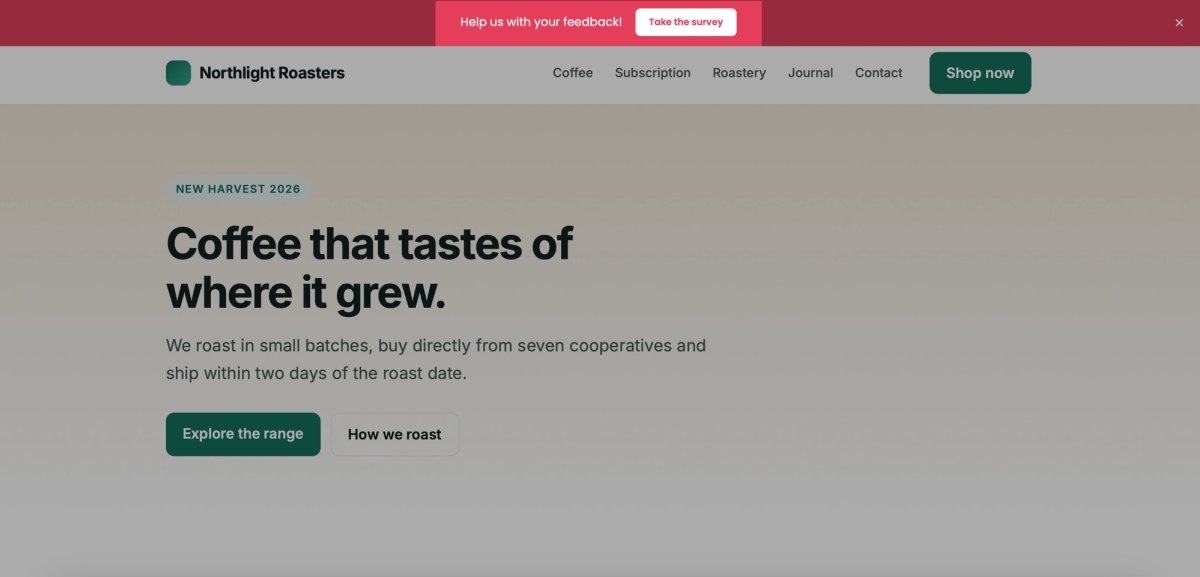
When embedding pays off
The detour through a link costs respondents. Someone who has the survey right in front of them decides faster, and that is the gain. There is a flip side: a survey on the page only reaches the people who visit that page anyway.
In four cases embedding beats sending the link out.
- Feedback on a page you are trying to improve.
- A customer survey right after a purchase or booking.
- A sign-up or vote that belongs to the page content.
- Ongoing feedback with no fixed collection period.
The other way round: if you need a certain number of responses by a deadline, sending the survey out is more reliable. How to reach people on purpose is covered in how to find participants for your online survey.
What to settle before you embed
The embedding itself takes two minutes. The questions before it decide whether it works in the end and whether it is allowed.
Four points belong on the table before the code goes into the page.
Consent and disclosure
The rule in the US is different from Europe. There is no single federal law that demands prior consent before an embedded element may set a cookie. What you have instead is a patchwork of state privacy laws, led by California's CCPA and CPRA and joined by Virginia, Colorado, Connecticut and others, that ask you to disclose tracking in your privacy policy and, in several states, to give visitors a way to opt out of tracking or targeted advertising. On top of that, the FTC treats hidden or misleading data collection as an unfair practice. So the honest steps are to know what the embed collects, name it in your privacy policy, and honor the opt-out signals your visitors send. Ask your provider what the embed sets before you build it in. And if any of your visitors are in Europe, the GDPR applies to them on top, which usually means asking first. This is not legal advice, and your counsel has the last word.
How it looks on small screens
An embedded questionnaire often comes with a fixed width and a fixed height. On a phone that leads to sideways scrolling or a cut-off submit button. Check every embed on a real device, not just in a shrunken browser window.
Where it sits on the page
A fixed field belongs where the content matches the question, so below the article, below the order confirmation, at the end of the service page. An overlay interrupts. It works where the page itself is not the point, and it gets in the way wherever somebody is reading.
Reserving the space in the layout
When the questionnaire loads late, the content below it jumps down. Reserve the height in your layout from the start. That keeps the page calm and protects the loading scores Google uses in its assessment.
Create a survey for free
With empirio.ai you can create a modern online survey in minutes — with 100% data protection from Germany.
Start for freeFour steps to an embedded survey
The sequence is the same in every tool, only the menu items are named differently. The order matters: first the survey stands, then the format is decided, then the code follows.
Four steps lead from the finished survey to a running embed.
Step 1: Finish and test the survey
Create the questionnaire in full and fill it in once yourself before you think about embedding. Changes are possible later, but each one means checking the embedded page again. How a solid questionnaire comes together is covered in how to create a questionnaire properly.
Step 2: Choose the display format
Decide between a fixed field in the content and an overlay that announces itself. The question behind it is not technical but editorial: should the survey be part of the page or an offer on top of it. Doing both on one page is the safe way to make both ineffective.
Step 3: Copy the code and paste it in
In the tool you generate the embed code and copy it into your page. In a builder like WordPress that goes through a custom HTML block, on a hand-built page straight into the template. Change nothing in the code except the dimensions the provider explicitly offers for adjustment.
Step 4: Check it on every device
Open the page afterwards on a computer, on a phone and once in a private window. The private window shows you what visitors see without a stored consent. Fill the survey in completely while you are there and delete the test response afterwards.
Embedding a survey with empirio.ai
At empirio.ai you find the embedding options inside the survey itself under Share > Embed. There you pick a format, copy the code and paste it into your page.
Five formats are available, and both groups are covered.
| Format | How it appears | When it fits |
|---|---|---|
| Inline Embed | fixed in the page content | survey belongs to the page topic |
| Popup Button | floating icon like a live chat | ongoing feedback without interrupting |
| Slide-in Panel | panel sliding in from the side | a prompt after a while on the page |
| Top Banner | banner at the top of the page | a short vote for every visitor |
| Exit Intent | window when visitors leave | asking why someone is bouncing |
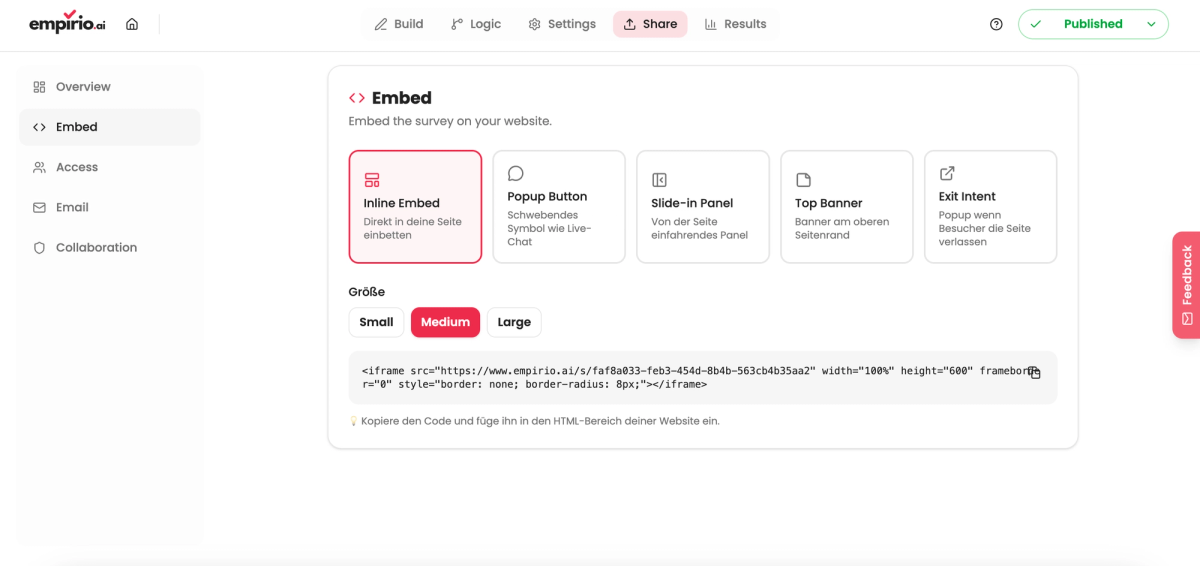
The size of the Inline Embed
For the fixed field in the content there are three set sizes: Small, Medium and Large. Freely adjustable dimensions are not provided, you pick one of the three. The choice follows the length of the questionnaire and the space at the intended spot: a short vote with three answer options does not need a large field, a questionnaire with ten questions does.
Putting the code in place
Once you have chosen, the finished code is ready. You copy it and paste it where the survey should appear. From then on it runs inside your website, and the responses land in the same data set as those coming through the link.
One point matters for the consent question: the embed from empirio.ai sets no cookies.
The honest limit: the free plan covers 50 responses a month. A survey sitting permanently on a busy page reaches that limit faster than one sent out once.
Common mistakes when embedding
Three mistakes turn up again and again. All three come from treating the embed as a piece of installation rather than as part of the survey.
They only show once the survey is already running.
Showing the overlay on every page
A window that appears on all pages and on every visit gets clicked away before anyone reads the question. Limit the overlay to the pages the question actually belongs to.
Assuming it is anonymous because it is embedded
Whether a survey is anonymous is decided by its settings, not by the place it appears in. Check that inside the survey before you promise anonymity. What belongs to it is covered in how to create an anonymous survey.
Never checking again after installing
A survey on a page often keeps running unwatched for months. Put a date in your calendar to look whether responses still come in and whether the display still holds after a theme update.
Conclusion
Embedded, the survey saves exactly the click where many people otherwise drop out. The price is that it only reaches the visitors of that page. The decision therefore follows the occasion: feedback on a page belongs on that page, a survey with a deadline belongs in an active send-out. Everything else is a question of format and of checking it on a phone.
Where to go next
- Want to reach people on purpose? How to find participants for your online survey
- Prefer to hand it out offline? Create a survey with a QR code
- Want the data protection side settled? Data privacy and consent in surveys
- Does your page have an international audience? Create a multilingual survey
A survey right on your own page?
Create your survey with empirio.ai, an online survey tool from Germany, and pick up the finished embed code under Share > Embed. Create a survey online
Frequently asked questions
Create a survey for free
With empirio.ai you can create a modern online survey in minutes — with 100% data protection from Germany.
Start for free